Adding a Reminder
Jira Reminders makes it easy to schedule automated Jira updates directly inside Slack.
Follow this guide to create your first reminder.
kk
1. Open Jira Reminders in Slack
- In Slack, open the Jira Reminders app from the sidebar
- Go to the App Home tab
- Click Add Reminder
2. Choose What You Want to Track
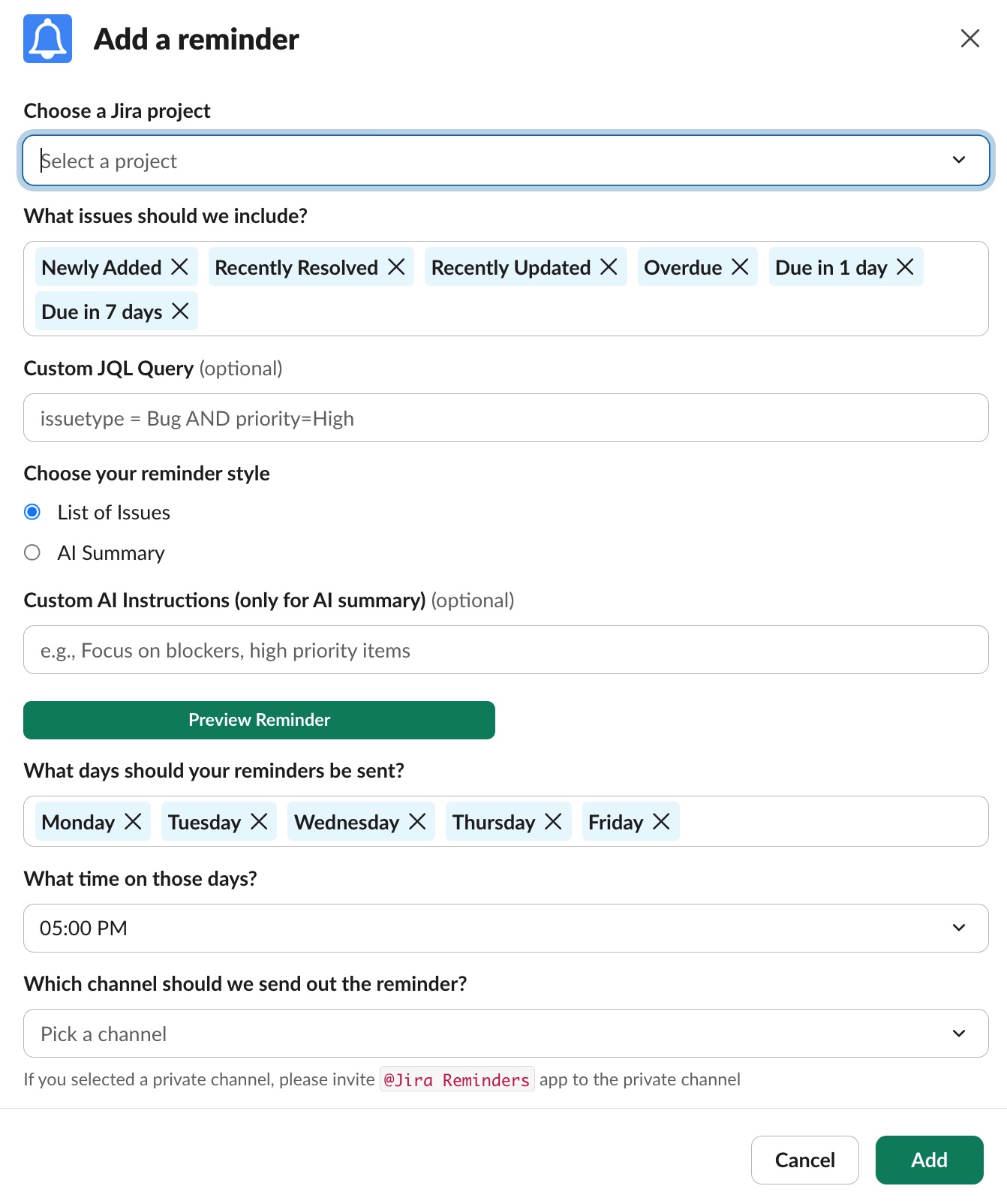
Select one or more of the following:
Jira Project
Pick the project you want reminders for (e.g., ENG, PLATFORM, MOBILE).
Issue Types
Choose issue types to include:
- Bugs
- Stories
- Tasks
- Epics
- Improvements
- Or select All Types
Filters or Custom JQL (Optional)
You can refine reminders using:
- Predefined filters (Overdue, New, Resolved, Blocked)
- A custom JQL query
Example: project = ENG AND status = "In Progress"
AI Summary Instructions (Optional)
Add custom instructions to control how AI-generated summaries are formatted.
Example:
“Group issues by priority and highlight blockers first.”
3. Select Your Delivery Schedule
Choose how often reminders should be sent:
- Daily
- Weekdays
- Weekly
- Custom time (e.g., 9:00 AM local timezone)
You can set multiple reminders for different teams or timezones.
4. Choose the Slack Destination
Send reminders to:
- A Slack channel (team updates)
- A direct message (personal reminders)
- A group DM (small team reminders)
You must add the Jira Reminders bot to private channels before sending.
5. Preview the Reminder
Before saving, Jira Reminders shows a preview:
- Issue groups (New, Overdue, Resolved, etc.)
- Slack-formatted Jira links
- AI summaries (if enabled)
- Example layout of what your team will receive
Verify it looks correct and adjust filters or schedule if needed.
6. Save the Reminder
Click Save to activate the reminder.
Your schedule begins immediately, and you can edit or pause the reminder at any time from the App Home page.
Tips for Better Reminders
- Use separate reminders for different teams or projects
- Add AI instructions to improve clarity and consistency
- Schedule overdue reminders in the morning to surface blockers early
- Use custom JQL to build highly targeted reports
If you need help configuring reminders, contact support@jirareminders.com.